
Students can use an Android phone or iPhone with a drone flight simulator for schools if the platform supports mobile access. Other simulators run on computers, and their controls vary. Choose based on how students will access the software and what they need to practise.
A phone-friendly option can be practical when students already have mobile devices and classroom computers or equipment vary. But device compatibility is only one consideration. Choosing a drone flight simulator for schools also means considering which controls students need and whether they’re learning basic flight or exploring code-driven missions.
This guide explains how to compare mobile and computer platforms, assess input options, and connect virtual drone coding with programming concepts and flight behavior. It also covers computer requirements to help educators evaluate their classroom setup and learning goals. Use these factors to choose a drone flight simulator for schools that supports practical skill-building and further study in drones and UAS.
Key Takeaways
- Learn when students can use phones for simulator practice and why device compatibility depends on the platform.
- Compare how simulator access and control options can shape classroom activities.
- See how virtual coding exercises can help students connect programming choices with drone behavior.
- Understand which computer components may matter when planning simulator use across a class.
- Explore how AINautics University’s Train-the-Teacher Program and Part 107 Training can support classroom learning and future UAS goals.
Engaging larger groups when physical drones are limited
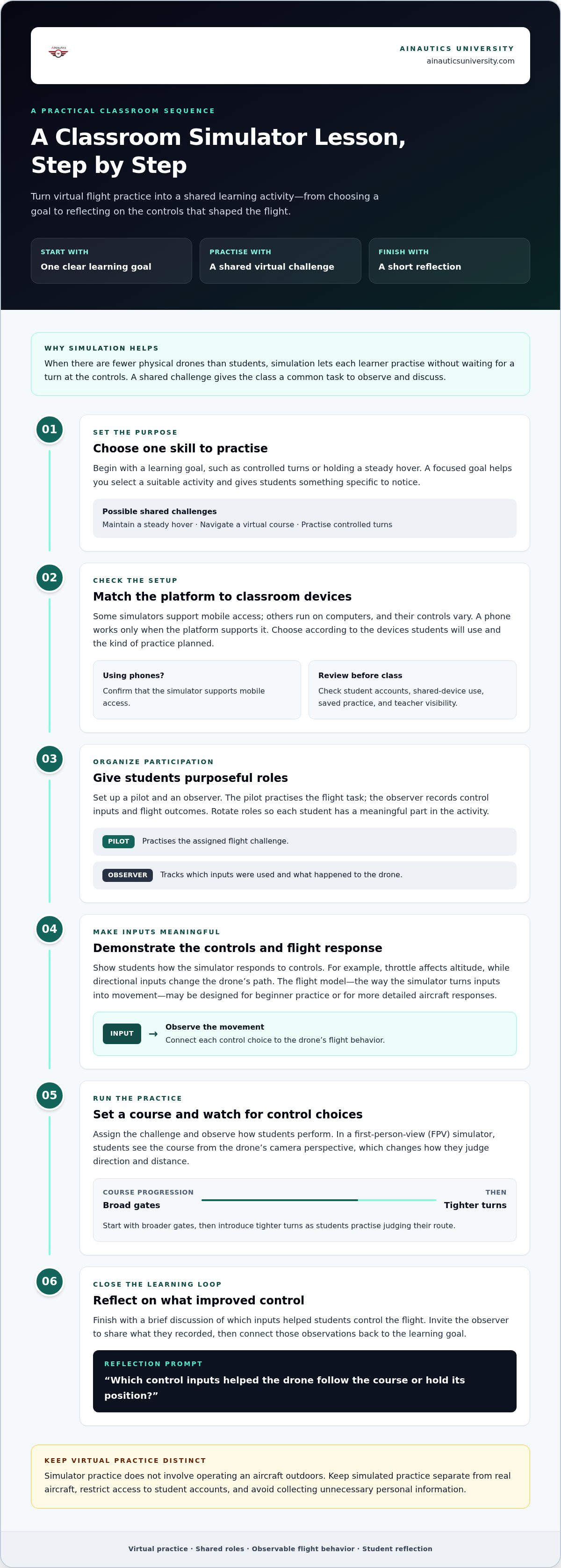
When a class has fewer physical drones than students, simulation lets each learner practise without waiting for a turn at the controls. A teacher can set a shared challenge, such as holding a steady hover or navigating a virtual course, and ask students to compare approaches. One group might pilot while another records control inputs and flight outcomes. Rotating roles gives everyone a purposeful task.
Which drone simulators support classroom use, multiple students, and teacher dashboards? Features vary by platform, so look for explicit support for student access, group management, and instructor progress tools. Before planning a lesson, review how the platform handles separate student accounts, shared devices, saved practice, and teacher visibility.
A simulator’s flight model translates control inputs into movement. Students can see, for example, how throttle affects altitude and directional inputs change the drone’s path. Some models focus on accessible beginner practice, while others offer more detailed aircraft responses. Match the level to the lesson: basic control exercises suit an introduction, while a more demanding challenge can help experienced students refine precision.
Realistic flight physics can make virtual practice more informative when the simulation responds consistently to inputs. Students can practise correcting drift, coordinating turns, and managing speed on a course. FPV, or first-person-view, simulators show the course from the drone’s camera perspective, changing how students judge direction and distance. Teachers can start with broad gates, then introduce tighter turns.
How can teachers set up a drone simulator program step by step? Begin with a learning goal, such as controlled turns. Choose a platform that works with available devices, assign student roles, and demonstrate the controls. Set a course, observe how students perform, and finish with a brief reflection on which inputs improved control.
What are the FAA rules for flying drones at U.S. schools and on school grounds? A school’s location alone doesn’t determine whether an outdoor flight is permitted. Before flying a real aircraft, identify the operator, purpose, location, and applicable FAA requirements. Simulator practice does not involve operating an aircraft outdoors.
Schools should set clear boundaries for safety, privacy, and cybersecurity. Keep simulated practice separate from real aircraft, restrict access to student accounts, and avoid collecting unnecessary personal information. The U.S. Government Publishing Office notes that drones are being developed with facial recognition technology that can remotely identify people in schools and other public places, making privacy planning relevant to drone-related lessons.
Are there grants or funding programs for drone education in U.S. schools? According to the U.S. Government Publishing Office, Aviation Workforce Development Grants fund scholarships, apprenticeships, and outreach initiatives for education that includes unmanned aircraft systems operators. Schools can consider whether workforce-focused learning goals align with such programs.
Free-to-play availability
Free access can help a school try a simulator before planning classroom use, but “free” can mean a no-cost version, a limited trial, or educational access with specific terms. These arrangements may differ in flight activities, saved progress, student accounts, and instructor tools. A version suited to individual practice, for example, may not help a teacher manage a class. Compare the access terms with the lesson you plan to teach.
How do popular educational drone simulators compare in features and pricing? Compare access models, learning activities, classroom tools, and whether use is free, trial-based, or paid. Pricing depends on the access arrangement and included features, so evaluate the full classroom use case rather than assuming a free download means ongoing use is free.
Before choosing, define the classroom task. A basic flight lesson may need a practice area and repeatable controls; a skills challenge may require varied courses or saved attempts. Then decide who needs access: a teacher preparing a demonstration, individual students, or a group rotating through stations. This helps show whether a free option suits the lesson or only provides an initial preview.
- Access: Note whether the option is free, trial-based, or paid.
- Classroom fit: Look for student access and instructor visibility.
- Learning content: Match available exercises to the lesson goal.
- Continuity: Consider what happens to practice records when access changes.
Use a short evaluation sequence before adopting a tool. First, try one practice task on the devices students will use. Review the access terms for classroom use and account management, then check whether the instructor can demonstrate the same activity students will complete. If the lesson teaches controlled turns, for example, make sure students can repeat the maneuver and review their results. This helps distinguish a useful classroom resource from one that only looks suitable in a brief preview.
Supported platforms and input devices
A drone flight simulator for schools should work on the devices students will use. Some simulators run in a web browser; others require an installed application. Mobile access may suit an Android phone or iPhone, while a computer can provide a larger display. These are device categories, not a guarantee that every simulator supports them. Match the platform’s stated requirements to the devices available in your classroom.
Input options shape the learning experience. Touchscreens let students tap controls, while keyboards and mice offer separate keys and pointer movement. A compatible game controller may provide two joysticks for practising coordinated movement. Don’t assume a controller will work just because a device has a USB port or Bluetooth. Review the simulator’s input instructions and test the controls students will use.
Check compatibility before building a lesson. Open the simulator on a classroom device, launch a practice activity, and try each intended input. For example, see whether a student can start, steer, and pause a virtual flight using only the touchscreen. Repeat the task with a keyboard or controller, and note any differences that could affect students’ ability to follow the demonstration.
- Phones and tablets: Try touch controls and check whether text and flight details remain readable.
- Computers: Test keyboard and mouse controls during the same practice task.
- Controllers: Confirm button mapping and joystick response before assigning a class activity.
- Browsers or apps: Identify how students launch the simulator on each device type.
Mixed-device classrooms benefit from a consistent teaching routine. Demonstrate a maneuver, such as a controlled turn, on the teacher’s device, then explain the equivalent action for each student input method. A keyboard user may press a key, while a touchscreen user may drag or tap. Controls vary by simulator, so teach from its on-screen instructions rather than assuming every layout is the same.
Plan for access as well as controls. If students share devices, set up a rotation that gives each learner time at the controls and a clear observation task. If students use personal devices, make sure the activity works with the school’s chosen platform and approved access method. A simple lesson sheet can list the device, input method, maneuver, and success criterion. This keeps the exercise focused across different screens.
Before adopting a drone flight simulator for schools, list classroom devices and compare them with the platform and input requirements. Test a flight task on each device category before teaching. This reveals whether the activity works across phones, tablets, and computers, and whether students need a shared control method or device-specific instructions.
Classroom drone coding in a virtual environment
Virtual drone coding connects programming instructions with visible aircraft movement. Students enter or build commands, run a simulated flight, and observe the result. For example, a sequence can direct a drone to take off, move forward, turn, and land. This makes abstract logic visible as a flight path students can inspect and revise.
Start with a clear goal, such as guiding a virtual drone around a marker. Ask students to predict what each instruction will do before running the sequence, then compare the predicted path with the simulator’s result. If the drone turns too early, students can identify which command to change. This cycle builds debugging skills: finding an error, editing an instruction, and testing again.
Lessons can progress from direct commands to more structured logic. Beginners might arrange movement blocks in order. A later task could use a repeat command to trace the same route more efficiently. If the simulator supports conditions, students can explore instructions such as “if an obstacle appears, turn.” Base activities on the software’s available commands.
- Plan: Sketch a route with a start point, a turn, and a landing point.
- Build: Arrange commands that match the route.
- Predict: Have students describe the expected flight before running it.
- Test: Compare the virtual flight with the sketch.
- Revise: Change one command and observe how the path changes.
Pair programming gives both students an active role. One learner can arrange commands while a partner predicts the flight and checks the result. Switch roles for the next route. For instance, the “pilot” might create a square path while the “navigator” checks that each turn follows the plan. A brief explanation after each test helps students connect code choices with movement.
Assess the process, not only whether students land successfully. Ask them to explain why they chose a command, identify a change they made, and describe its effect. A saved screenshot or written command sequence can show how their solution developed. These records also help distinguish a coding issue from a misunderstanding about direction or movement.
Keep virtual coding separate from real-flight operations. A simulated command sequence provides a controlled setting for testing logic, but it does not establish that the same sequence suits a physical aircraft or location. Use the virtual task to teach planning, sequencing, and debugging, then connect those skills to broader UAS learning through discussion, reflection, or a follow-up activity.
Computer requirements
A simulator’s computer needs depend on its software and learning activities. A simple flight exercise may place different demands on a computer than detailed virtual environments. One listed specification set names an AMD Ryzen 7 5800X processor, an NVIDIA GeForce RTX 3070 Ti with 16GB of VRAM, 32GB of RAM, and a 1 TB SSD. Treat these figures as a particular configuration, not a universal requirement for every classroom simulator.
The processor, or CPU, carries out software instructions. The graphics card renders the virtual world, while VRAM is its dedicated working memory. System RAM supports active programs, and an SSD stores files. In that listed setup, the CPU is an AMD Ryzen 7 5800X, paired with the named NVIDIA graphics card. Each component serves a different role, so compare the complete requirements with the simulator’s own software demands.
For classroom planning, identify the exact application and activity first. A browser-based lesson, installed simulator, and detailed 3D flight environment may have different requirements. Check the software’s stated minimum and recommended specifications, then compare them with the computer’s processor, graphics card, memory, storage, and operating system. Don’t assume a computer suitable for everyday schoolwork will run every simulator smoothly.
- Processor: Compare the computer’s CPU with the simulator’s stated processor requirements.
- Graphics: Check the graphics card and its available VRAM.
- Memory: Compare installed RAM with the software’s requirements.
- Storage: Confirm available SSD space for installation and saved work.
Test the simulator before assigning a computer-based lesson. Install or open it on an intended device, load the planned activity, and check that the controls respond as expected. For example, try a flight course with its visual environment enabled. If the image stutters or the activity takes too long to load, compare the computer’s components with the software requirements before preparing the full lesson.
Shared computer rooms also benefit from a consistent setup. Record which devices run the simulator successfully and note any differences in graphics hardware or memory. If students rotate between computers, test the same activity on each type. This avoids building a lesson around a configuration available at only one station. An inventory can list each device’s processor, graphics card, RAM, storage, and simulator test result.
Use the AMD Ryzen 7 5800X, NVIDIA GeForce RTX 3070 Ti with 16GB of VRAM, 32GB of RAM, and 1 TB SSD as a concrete reference when reviewing a demanding setup. Match actual classroom computers to the chosen software before planning student access. Explore classroom drone simulator learning as you plan your program.
AINautics University: Part 107 Training
AINautics University offers Part 107 Training for learners preparing to pursue FAA remote pilot certification. Simulator practice can build familiarity with virtual flight, while Part 107 study focuses on the knowledge needed for certification. Educators can explore the Train-the-Teacher Program to support classroom integration, or the VR Trailer Mobile Lab for hands-on learning experiences. Self-Paced Certification provides another learning option for individuals working toward their goals.
Consider these pathways when students are ready to connect classroom drone activities with structured UAS learning, or when educators want help introducing the subject into their curriculum. Choose the next step based on whether the priority is educator preparation, student certification study, or an immersive learning experience.
Visit ainauticsuniversity.com to explore AINautics University’s programs.
Turn classroom practice into a pathway
A drone flight simulator for schools can start deeper learning, but it need not be the endpoint. Connect virtual practice with a meaningful goal, such as building students’ confidence with UAS concepts or preparing educators to introduce the subject. Choose an outcome that fits your learners, then decide what progress should look like in class.
Teachers can plan a sequence that moves from simulator activities to reflection and career exploration. Students can describe what they learned, identify skills they want to develop, and consider how drone knowledge connects with future study. Much like the focused discipline developed through private music studies at alitalakepianostudio.com, hands-on technical practice reinforces how dedicated coaching helps learners master complex motor skills and creative problem-solving. Educators can shape the learning experience around their curriculum and students’ interests.
AINautics University can help you explore a next step for your educational goals. Contact AINautics University to discuss your direction and keep building toward what’s next.
Frequently Asked Questions
Can I Use an Android Phone or iPhone for Simulators?
Yes, if the simulator supports mobile devices. Check whether it runs in a browser or requires an app, then test it on the school’s Android phone or iPhone. Go beyond opening the simulator: complete a short activity and try the controls. School device settings, login requirements, and screen layout can affect classroom access, so test the same setup students will use.
What drone flight simulators are best for schools and students?
The right fit depends on the lesson, students’ experience, and classroom setup. Compare simulators by their activities, control options, and teacher tools for organizing practice. Try the same beginner flight task in each candidate, then consider whether it supports your next lesson goal. A simulator suited to an introduction may not meet a class’s coding or advanced flight objectives.
Are drone simulators compatible with Chromebooks, Windows PCs, and VR headsets?
Compatibility varies by simulator, so don’t assume a Chromebook, Windows PC, or VR headset will work automatically. Check the software’s platform and hardware requirements for each device type, then test the intended activity on the actual classroom setup. For VR, confirm that both the headset and computer support the chosen software. A complete test includes launching the lesson, using its controls, and finishing the activity.
Do school drone simulators teach skills aligned with FAA Part 107 or TRUST requirements?
Some simulator activities can support learning about drone operation, but the software’s content determines how closely it matches a course objective. Don’t treat simulator completion alone as proof of FAA Part 107 or TRUST training. Review what the lesson actually teaches, then pair it with suitable instruction for the learner’s goal. AINautics University offers Part 107 Training for learners pursuing structured certification preparation.
What equipment is needed for a school drone simulator lab?
Start with a device that meets the selected simulator’s requirements and supports its controls. Depending on the setup, this could be a computer and keyboard, touchscreen device, or compatible controller. Teachers can also plan for a display to demonstrate activities and a charging arrangement for shared devices. Before preparing the lab, run the intended lesson on each device type and note setup differences.
Which drone simulators support classroom use, multiple students, and teacher dashboards?
Features vary by platform. Choose one that explicitly offers student access, group management, and instructor progress tools, and review how it handles accounts, shared devices, saved practice, and teacher visibility.
How do popular educational drone simulators compare in features and pricing?
Compare simulators by access model, learning activities, classroom tools, and whether access is free, trial-based, or paid.

Article by
AINautics University Team
The team behind AINautics University, dedicated to drone education and FAA Part 107 certification prep, VR flight simulation, and STEM training programs for students and educators.


