
Virtual flight is more than a warm-up: it offers a practical way to build familiarity with controls before operating a real aircraft. A drone simulator university program can let beginners practice flight controls, adjust controller settings, review performance, and explore virtual environments without a physical drone. Learners can repeat maneuvers and see how their inputs affect a simulated flight.
A simulator can help you get familiar with basic controls before moving on to other forms of flight training. This article explains how simulation supports flight analysis, controller setup, hardware-free practice, and beginner learning. You’ll also see how changing the virtual environment can make practice more relevant to your goals, whether you’re new to drones or exploring further UAS education.
Key Takeaways
- Use simulator feedback to review your flight inputs and identify skills to practice next.
- Set up a compatible radio controller and calibrate its controls before starting a session.
- Build familiarity with flight controls in a virtual environment before practicing with physical equipment.
- Start with basic maneuvers, then adjust the aircraft model and environment to match your learning goals.
- When you’re ready to connect practice with certification learning, explore AINautics University’s Part 107 Training.
1. Flight simulation and performance analysis
A simulator translates control inputs into a virtual flight, so learners can observe how the aircraft responds. Choose a scenario and repeat a simple maneuver, such as flying straight and making a controlled turn. Compare the aircraft’s movement with your inputs, then repeat the maneuver after changing one input to see how the result differs.
Features and flight modes vary by simulator. Look for options to select an aircraft model, adjust control response, and change the practice environment. Stabilization can help beginners focus on steering, while modes with fewer assists can show how small inputs affect movement. Mode names and functions are specific to each software program.
Flight physics describe how a virtual drone responds to controls and simulated conditions. Realism depends on how the software models acceleration, turning, momentum, and control adjustments. The feedback reflects that simulator’s model, not a measurement of a physical aircraft. To analyze a maneuver, repeat it, note where control became difficult, change one setting, and try again.
Computer capability can affect the experience. One example configuration lists 32 GB of RAM, a 1 TB SSD, and an NVIDIA GeForce RTX 3070 Ti graphics card with 16 GB of VRAM. These are example specifications, not universal requirements. Actual needs depend on the program and visual settings.
Universities may include drone or UAV simulation in aerospace, aviation, robotics, or unmanned aircraft coursework. Course names and access differ between campuses.
University simulation and real-world flight practice serve different purposes. A simulator provides repeatable exercises; physical practice adds direct experience with an aircraft and its surroundings.
Simulator hours and FAA certification requirements depend on the specific certificate and applicable FAA rules. Treat virtual sessions as practice, and distinguish them from any flight experience or training specifically required for certification.
College students may access simulators through coursework or campus labs. Available software and access arrangements depend on the university program.
Universities select simulators according to their research questions, aircraft models, and training goals. A research project may use software suited to a particular experiment, while instruction may focus on repeatable practice scenarios.
Drone simulation may be part of aerospace, aviation, robotics, or UAS coursework. Review course descriptions to find out whether a particular degree or certificate includes simulator training.
To find and enroll in a university simulator course, search the course catalog for “UAS,” “UAV,” “drone,” and “simulation.” Review the listed prerequisites and enrollment steps before applying.
Simulation can support university research by making scenarios repeatable and allowing researchers to examine control behavior. Results reflect the simulator’s model and do not automatically represent physical flight.
Drone labs and UAV simulation facilities differ from one U.S. university to another. Search university catalogs and department pages for UAS labs, UAV research, robotics facilities, or simulation coursework.
The FAA Recreational UAS Safety Test, or TRUST, launched in June 2021, takes about 30 minutes, and is required for recreational drone flyers in the United States.
2. Connecting a radio controller to a simulator
A radio controller gives simulator practice a familiar physical interface. Instead of relying only on keyboard commands, you move control sticks and see how the virtual aircraft responds. Some radio controllers can connect to compatible simulators, but support depends on the software and setup. Support depends on the simulator, so begin by matching its input options to your controller.
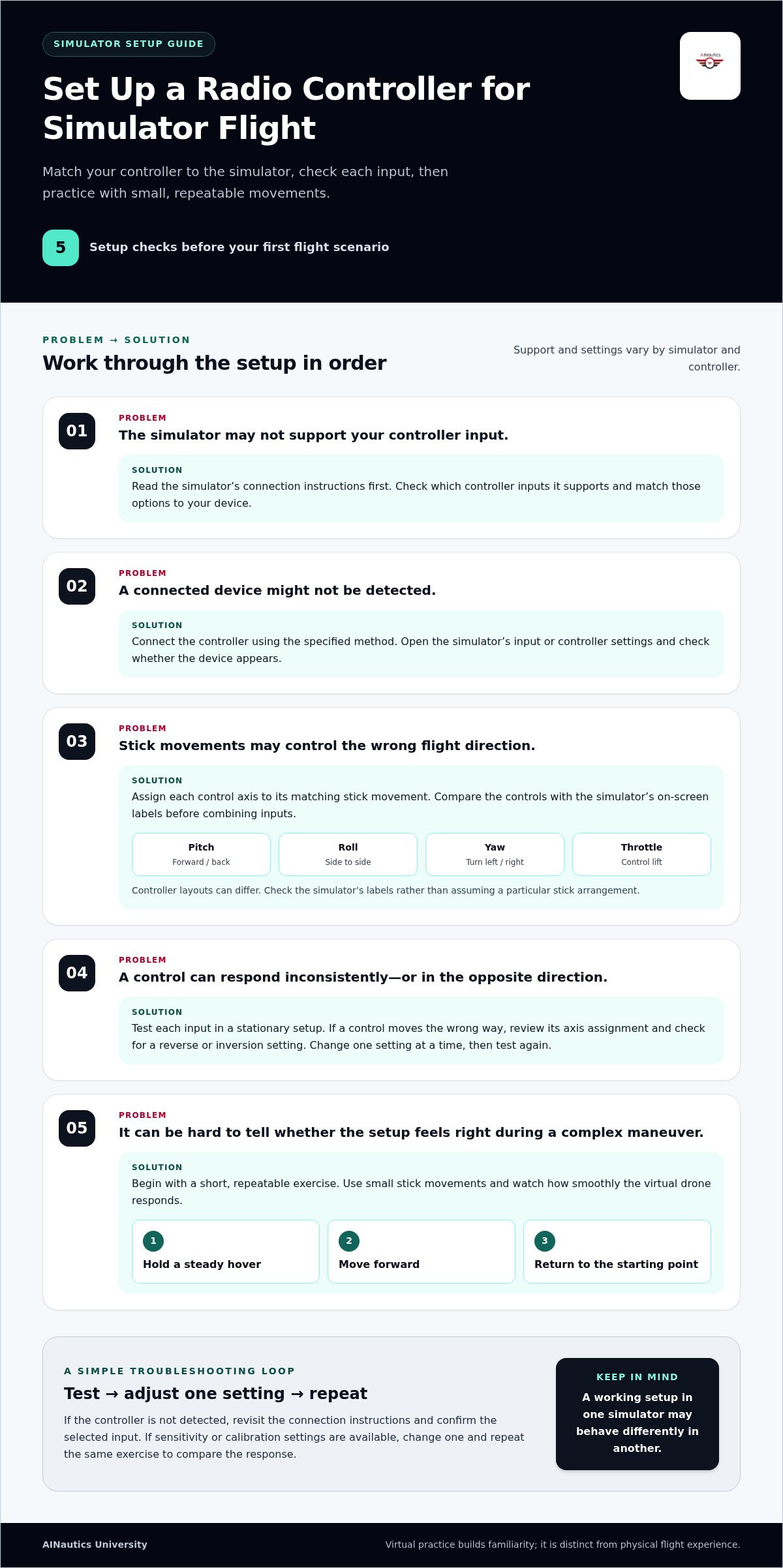
Before launching a flight, use this setup sequence:
- Read the simulator’s connection instructions and identify its supported controller inputs.
- Connect the radio controller using the method the simulator specifies.
- Open the simulator’s input or controller settings and check whether it detects the device.
- Assign each control axis, such as pitch, roll, yaw, and throttle, to the matching stick movement.
- Test each input in a stationary setup before beginning a flight scenario.
Calibration helps the simulator interpret stick movement consistently. If the on-screen aircraft turns when you move the stick forward, revisit the axis assignments. If a control responds in the opposite direction, check for a reverse or inversion setting. Make one adjustment at a time, then test the same input again. This makes it easier to identify which setting changed the response.
Control mapping matters because controller layouts vary. One radio may use the left stick for throttle and yaw, while another setup may assign those functions differently. Check that the simulator has selected your preferred layout. Compare each stick movement with the on-screen labels, then test a small input before combining controls. For example, try a gentle forward movement before adding a turn.
A connection that works in one simulator may behave differently in another. Check whether the software recognizes your device, what input settings are available, and how the controls respond. If the simulator doesn’t detect the controller, revisit its connection instructions and confirm that the selected input matches the device. Change settings one at a time to make troubleshooting easier.
After setup, fly a short, repeatable exercise: hold a steady hover, move forward, and return to the starting point. Watch whether the virtual drone responds smoothly to small stick movements. If the simulator offers sensitivity or calibration settings, adjust one and repeat the exercise. Comparing attempts helps you understand how controller inputs affect virtual flight.
For structured practice with a controller, explore virtual drone training as a next step.
3. Virtual training without physical hardware
A simulator lets learners practice virtual flights without owning or handling a physical drone. Start with a simple scenario, such as crossing an open virtual field, and focus on one control task. A laptop or desktop runs the software, which displays the aircraft’s response. This provides a way to explore flight concepts before accessing physical equipment.
Hardware-free practice is most useful when each session has a clear objective. For example, a student can rehearse takeoff, hold position, travel toward a visible marker, and return to the starting point. After the attempt, identify one skill to work on. Repeat the same scenario and focus on that skill rather than changing several actions at once.
A structured session can build familiarity with the sequence of piloting tasks:
- Select a virtual aircraft and an uncomplicated practice environment.
- Choose one goal, such as holding position or following a route.
- Fly the scenario while observing how each control input changes movement.
- Review the result and repeat the same task with one adjustment.
This approach can also help educators introduce UAS concepts in the classroom. An instructor can demonstrate a virtual route, ask students to predict what a control input will do, and let them test their prediction. A shared display gives the class a common example to discuss. Students can explain their decisions and compare approaches without needing a physical aircraft for every learner.
For students exploring Part 107 learning, simulation can provide a practical setting for discussing flight scenarios alongside formal study. A classroom exercise might pair a virtual route with questions about planning, observation, and control choices. Simulation supports the activity, but it should not be treated as a substitute for studying certification material or meeting applicable requirements.
Make practice more useful by keeping a brief session record. Note the scenario, the skill practiced, and one adjustment for next time. A student might write, “route tracking, overshot the marker, reduce the turn input.” That gives the next session a specific goal and turns hardware-free practice into a repeatable learning routine.
4. Beginner practice in a simulator
Begin with one control goal rather than a complicated mission. A first session might focus on keeping a virtual drone steady with small adjustments. Choose an open practice environment, use the default aircraft settings, and observe the response. If the drone drifts after an input, make a smaller correction instead of moving both sticks sharply.
Build skills in a deliberate sequence. Practice each task before combining it with another:
- Hold the aircraft in one position and make small corrections.
- Move forward, pause, then return along the same path.
- Practice turning while keeping the drone within the visible practice area.
- Combine movement and turning only after each action feels predictable.
Give orientation focused practice. When a drone faces away from you, its movement may feel intuitive; when it faces toward you, left and right can seem reversed. Use a virtual marker or landing point as a reference. Turn the aircraft in place, pause, and identify its direction before moving again. This brief check connects the drone’s position with its controls.
Use one scenario to practice one skill. For example, follow a straight virtual path and note whether the drone passes the marker or stops short. Repeat the route, changing only the size of your control input. Avoid changing the aircraft model, environment, and control settings together. Keeping the scenario consistent makes it easier to understand what changed between attempts.
Set a clear finish point for each session. A beginner might aim to complete a route, return to the start, and land within a marked area. Afterward, record the task and one observation, such as “turned too early before the marker.” Focus on that observation in the next attempt. A brief record turns each flight into a specific practice target rather than a series of disconnected attempts.
Simulators can also help teachers structure classroom practice. An educator can demonstrate a route, ask students to predict the effect of a control movement, and compare that prediction with the virtual flight. For instance, students can observe how the aircraft’s direction changes after a turn. The shared example gives the class a basis for discussing control choices and flight planning.
Keep expectations grounded: virtual practice builds familiarity with controls and flight sequences, but does not reproduce every aspect of operating a physical aircraft. Treat simulator progress as preparation for further learning, not proof of real-world flight ability. A steady routine, a clear task, and a brief review give beginners a practical way to build skills.
5. Customizable drone models and environments
Customization can turn one simulator into several focused practice scenarios. A learner might select a compact quadcopter for basic movement, then choose another available model for a new exercise. Options vary by software, so use the aircraft and environment settings available in your program. Change one setting at a time to understand its effect on virtual flight.
Aircraft settings can affect how a simulated drone responds. Depending on the simulator, adjustable parameters may include control sensitivity or flight assistance. Keep the initial setup unchanged while practicing a short route, then adjust one control setting and compare the next attempt with the first. This helps distinguish the effect of a changed setting from that of a new flying technique.
Environment selection gives a practice task useful context. An open virtual field can help learners focus on orientation, while a route marked by virtual objects can support navigation practice. Choose an environment to match the skill, not just for visual variety. Reduce distractions when practicing position-holding; use visible landmarks when moving between points.
Use this sequence to build a customized exercise:
- Select one aircraft model and record its current settings.
- Choose an environment that suits one learning goal.
- Fly the same short route and note where control became difficult.
- Change one aircraft or environment setting, then repeat the route.
- Compare the attempts and decide whether the adjustment helped.
For example, a student practicing controlled turns can fly between two visible markers. Keep the aircraft model and route consistent while changing only the environment or a relevant control setting. If the turn becomes harder to judge, return to the earlier setup and compare the results. This process encourages observation rather than reliance on a single impression.
Customized scenarios can support classroom discussions, too. An educator might give students the same route and ask them to explain how a different aircraft model or environment affected their decisions. Students can compare observations without assuming every simulator models aircraft in the same way. Record the software, selected model, environment, and adjustment for each exercise to make later comparisons clearer.
Customization has a practical limit: virtual settings describe the simulator’s model, not every characteristic of a physical aircraft. Use model and environment changes to explore specific questions, such as whether clear landmarks make a route easier to follow. Keep the exercise focused, repeat the same route, and discuss what changed. Explore a drone simulator university program when you’re ready to connect customized virtual practice with structured UAS learning.
AINautics University: Part 107 Training
AINautics University offers Part 107 Training for learners ready to connect drone practice with certification study. Simulator sessions can help you become familiar with controls and flight scenarios; structured training supports your next step toward understanding Part 107 material.
Choose a learning format that fits your needs. AINautics University’s SELF-PACED Remote Pilot Certification supports independent study, while its Train-the-Teacher Program helps educators bring UAS learning into the classroom. The VR Trailer Mobile Lab provides an immersive educational setting for hands-on instruction.
If you’re moving from virtual practice to certification preparation, explore training that aligns with your goals. Visit ainauticsuniversity.com to learn about AINautics University’s courses and choose a practical next step.
Turn Virtual Practice Into Your Next Learning Step
Each simulator session can help you identify what you want to learn next. Use that insight to shape a path that fits your goals, whether you’re exploring UAS as an individual or planning learning experiences for students. A drone simulator university program can be a starting point, but continued progress also calls for relevant knowledge and guidance.
Consider what would make your learning more purposeful: a clearer study plan, classroom resources, or a structured route toward certification preparation. AINautics University offers educational programs for different stages of that journey. Choose the direction that matches your needs and take a practical step toward it.
Contact AINautics University today to discuss your learning goals. Keep building your skills with curiosity and focus, and let each new step move you closer to the work you want to do.
Frequently Asked Questions
What FAA rules apply to drone simulator training at U.S. universities?
Distinguish simulator coursework from the requirements for actual drone operations. Simulator practice by itself does not replace an applicable FAA test or authorization. For recreational flyers in the United States, the FAA requires the Recreational UAS Safety Test (TRUST). A university exercise can help students discuss flight decisions, but they should separately identify which FAA requirements apply to the real flight they plan to conduct.
Which universities offer drone or UAV simulator courses and programs?
Course offerings and access differ by campus. Search university course catalogs for “UAS,” “UAV,” “drone,” and “simulation,” then review course prerequisites and enrollment steps.
Article by
AINautics University Team
The team behind AINautics University, dedicated to drone education and FAA Part 107 certification prep, VR flight simulation, and STEM training programs for students and educators.


